

4 min readUpdated
B-roll ideas for talking head videos: 25 shots you can film today
Short answer
The best b-roll ideas for talking head videos come from what you are saying: show your hands doing the task, the screen you are describing, the place you mention, the product in use or the before and after. When you have no footage, use cut-outs of yourself, frames from your clip or motion graphics instead.
On this page
Start from the script, not the camera roll
B-roll is any footage that plays while your voice continues: a cutaway from your face to something else. Most creators hunt through their camera roll for anything that fits. A better habit is to read your script or transcript and mark every noun and action you could show. Each mark is a b-roll idea, and it will match what you are saying because it came from what you said.
For short vertical videos on Instagram Reels, TikTok and YouTube Shorts, keep b-roll shots short, often one to three seconds, and filmed vertically. A widescreen stock clip squeezed into 9:16 looks out of place next to your phone footage.
25 b-roll ideas, grouped by what you are saying
| When you are... | B-roll you can film |
|---|---|
| Explaining a process | Hands typing; hands writing a list; a screen recording of the steps; a timer counting; tools laid out on a desk |
| Talking about results | The finished product; a dashboard on a phone (blur private numbers); a handwritten before and after; a happy customer message, with permission |
| Telling a story | The street or office where it happened; an old photo on your phone; a coffee cup and notebook; walking into the room; a door opening |
| Teaching a concept | A whiteboard sketch; sticky notes being moved; a book page with a line underlined; objects used as a model; a simple prop |
| Selling a product or service | Unboxing; the product in use; close-up of texture or detail; packaging; a client session from behind |
Film each one in a few seconds, vertically, in the same light as your talking head so the cuts match.
When you have no b-roll at all
Many talking-head creators film alone at a desk and have no extra footage. That is fine. There are cutaway-style shots you can build from the main clip itself, and they often look more designed than random stock footage.
A punch-in to a tighter crop on an important line acts as a cutaway without leaving your face. A cut-out of you over a bold flat background changes the scene completely. Photo cards made from frames of your own clip, a giant word behind your head, a checklist that builds under your chin or a graph that climbs beside you all change the picture while your voice carries on. These do the job b-roll does, which is to give the eye something new.
- Punch-in or slow push on a key line.
- Cut-out of you on a new coloured backdrop.
- Photo cards built from frames of your clip.
- Word behind the head on the main idea.
- Checklist, stat card or graph beside you.
- Split screen: a frame of b-roll on top, you below.
Placing b-roll so it helps
- Cover a cut. B-roll over a jump cut hides it and smooths the edit.
- Show the thing as you name it. Start the shot on the word, not after the sentence.
- Keep your voice continuous underneath, and use an L-cut or J-cut so the audio leads or trails the picture.
- Return to your face for the important lines. Viewers trust a face for the key claim.
- Do not cover the hook. The first seconds should show you speaking unless the b-roll itself is the hook.
Doing it with SkilledCut
SkilledCut is an AI video editor on your own computer, and several of its templates and effects create b-roll-style visuals from the clip you already have. Your AI agent reads your transcript, finds the moments that need a change of picture and places visuals on your strongest words, without inventing footage you did not shoot.
Cobalt cuts in photo cards from your own clip around a bold blue keyword. Notebook places you in a moving photo card on a paper page with words typing on, a full scene change without new footage. Layers adds plates, charts and a 3D fly over a page made of your video's frames. If you do have extra clips, the B-roll split effect puts b-roll on top with you below, and the Merge workflow joins clips first.
Prompts to paste: “/cobalt on my latest video, photo cards on the story section.” Or: “Add the B-roll split effect when I mention the new bottle.” See the prompt library for more.
Templates for this
Ask your AI agent for any of them by name. Every template is included with SkilledCut, plus all upcoming ones.
 LayersA full motion-graphics edit from one plain clip: words behind your head, plates, charts and cards./layersSee it
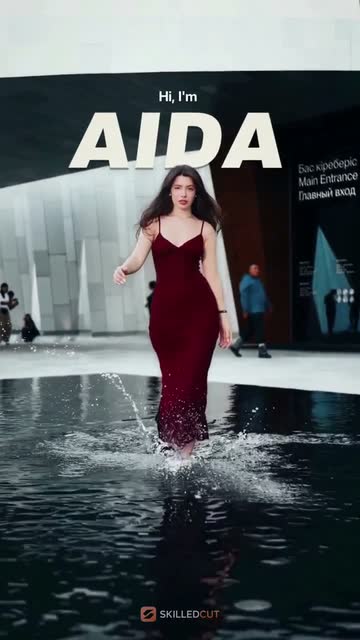 CobaltA bold blue keyword behind your head on every beat, with photo cards from your clip and a bright, clean grade./cobaltSee it
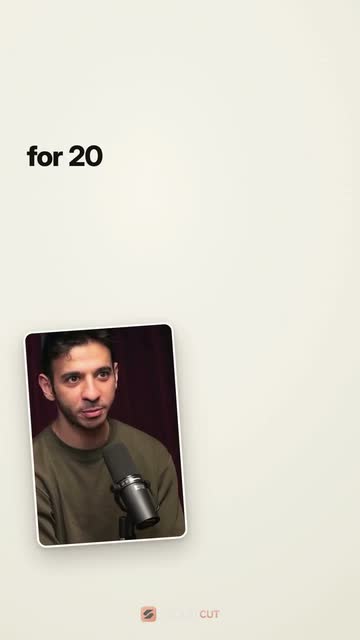 NotebookAn editorial page: you play in a photo card that glides around the page while your words type on in big black type./notebookSee it
Frequently asked questions
Short answers to what people ask before they try it.
How much b-roll should a talking head video have?
Enough to change the picture every few seconds without losing your face for long. In short vertical videos, short cutaways of one to three seconds work well.
Can I use stock footage as b-roll?
You can, but generic stock often looks out of place next to phone footage. Footage you film yourself, in the same light, usually matches better.
What can I use instead of b-roll?
Punch-ins, cut-outs on new backdrops, photo cards from your own clip, words behind your head and motion graphics such as checklists and graphs.
Should b-roll be filmed vertically for Reels?
Yes. Vertical b-roll fills the 9:16 frame. Widescreen footage has to be cropped hard or shown in a box.
Does SkilledCut add stock or AI footage?
No. It works from your own clip and any clips you give it, and only puts your words or what is visible in the footage on screen.
Keep reading
Glossary
What is B-roll?
B-roll is supplementary footage cut over the main shot. Definition, examples, how long to hold each shot and how it differs from A-roll.
ReadHow-to guides
How to add B-roll to a talking-head video
B-roll covers cuts and illustrates points. How to plan it, where to find it, how long each shot should be and how to avoid distracting from the speaker.
ReadHow-to guides
How to make a talking-head video less boring
Practical ways to keep a to-camera video watchable: tighter cuts, a change every few seconds, strong first lines and visuals that support what you say.
ReadBlog
Motion graphics for short form video: a menu of what to use, and when
A menu of motion graphics for short form video: hook titles, counters, stat cards, checklists, keyword pills and quote cards, and when each fits.
ReadBlog
Vertical video editing in 9:16: canvas, safe zones, type and export
Edit vertical 9:16 video properly: canvas and resolution, where text can safely go, reframing widescreen footage, type sizes, motion and export settings.
Read
More in the blog or all 16 templates.
Your next Reel is one prompt away.
One payment for every template, effect, voice and workflow, plus all upcoming templates. Pay once, use forever.