

Templates in depth3 min readUpdated
How to turn an interview clip into an editorial explainer video
Short answer
Ask your AI agent for the Notebook template on an interview or podcast answer. You play in a small tilted photo card on a cream paper page, your words type on in big black type with one serif accent word, and a marker highlight and hand-drawn circle mark the key ideas. It works on a landscape recording too.
On this page
What does the Notebook template look like?
Notebook puts the speaker on a cream paper page. The clip plays in a small tilted photo card that glides to a new spot on each phrase, while the spoken words type on in big black type. One word per phrase turns into a terracotta serif italic, a yellow marker sweeps under another, and a hand-drawn circle or underline marks the key idea. Some phrases are text-only pages with the card tucked away.
Filler sounds such as um and uh are left off the page, so the text reads cleanly.
Why does it suit podcasts and interviews?
An interview answer is mostly a face in a room, which is hard to make interesting in a vertical feed. Notebook gives the eye a second thing to follow without cutting away from the speaker. The card means the source can be landscape or square, so a standard podcast recording does not need to be reframed first.
It also reads as editorial rather than as a social template, which suits expert voices.
Which clip should you choose?
- A single answer, roughly 15 to 30 seconds, built around one idea.
- Clear speech, because the words on the page come from the transcript.
- A moment that stands alone, with no need for the question before it.
- If the answer starts part-way into a long recording, tell your AI agent the start time.
How do you ask for it?
Drag the clip in and ask for the template by name: "/notebook on my latest video. A 22-second podcast answer, my words typed onto the page as I say them." That is the prompt behind the example on the template page. The Notebook template runs from Claude, Codex, Cursor and other AI agents.
When is another template a better fit?
If the clip is a strong opinion rather than an explanation, Throwback gives it a bolder, retro poster treatment. If it is a lesson with numbered points, Explainer places the points as you make them. For a quick hook, Bold is shorter and louder.
Make it with your AI agent
Type "/notebook on my podcast clip" in Claude Code, Codex or Cursor with the clip attached: interview explainer video, handled on your computer. Copy more in the prompt library or see the Notebook template.
Templates for this
Ask your AI agent for any of them by name. Every template is included with SkilledCut, plus all upcoming ones.
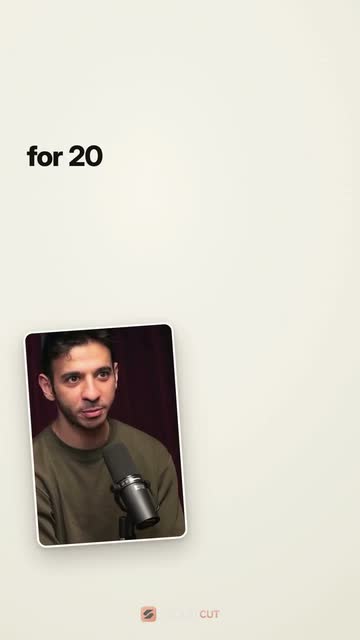 NotebookAn editorial page: you play in a photo card that glides around the page while your words type on in big black type./notebookSee it
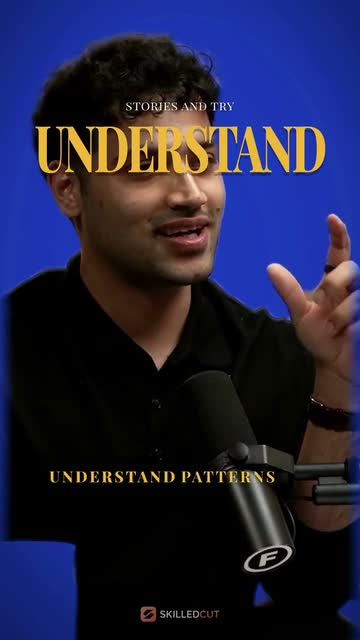 ThrowbackYou cut out over bold retro posters that change on every line, with tall vintage headlines from your own words./throwbackSee it
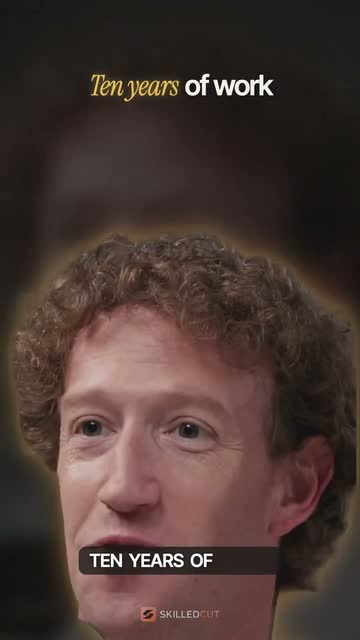 ExplainerTurns a talking clip into a clear lesson with gold word-by-word captions and points on screen./explainerSee it
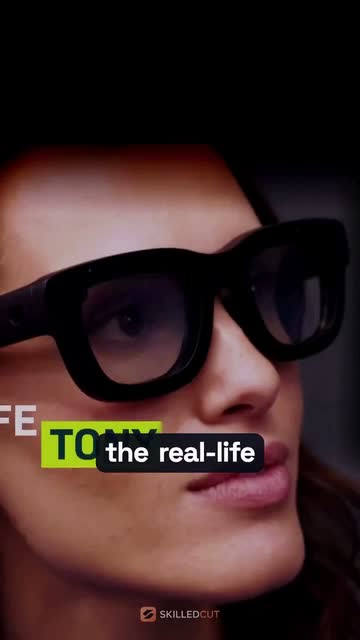 BoldA 10-second reel where giant words slam in behind you and captions pop word by word./boldSee it
Frequently asked questions
Short answers to what people ask before they try it.
Can Notebook use a landscape podcast recording?
Yes. The clip plays inside a small photo card on the page, so a landscape or square source is fine and the output is vertical.
Where do the typed words come from?
From the transcript of your speech, timed to when you say them. Filler sounds are left off the page.
How long should the clip be?
Short answers of about 15 to 30 seconds work best. For a longer recording, give your AI agent the start time and the length you want and it uses only that section.
Is my footage uploaded?
No. Transcription and rendering run on your computer.
Can I choose where the clip starts?
Yes. Tell your AI agent a start time and a length, and the template uses only that part of the recording.
Keep reading
How-to guides
How to edit an interview video
Turn a long conversation into a clear piece: select the strongest answers, cut filler, add cutaways and captions, and keep the speaker's meaning intact.
ReadHow-to guides
How to edit a video podcast for social media
Turn a video podcast into social clips: pick moments, trim, caption, reframe and style. Workflow, tools and what to leave out.
ReadUse cases
Turn podcast moments into styled vertical reels
Pick a strong moment from a video podcast and style it with SkilledCut. How to choose a clip, which template to use and where Opus Clip helps instead.
ReadBlog
Best AI tools for turning podcasts into clips
What to compare in a podcast-clipping tool: moment selection, reframing, captions, control and where the processing happens.
ReadBlog
SkilledCut's {{count}} templates compared: which one for which video
Wine, Plum, Amber, Cobalt, Big Word, Notebook, Throwback, Float Ad, Lookbook and more: what each template does and which video it suits.
Read
More in the blog or all 16 templates.
Your next Reel is one prompt away.
One payment for every template, effect, voice and workflow, plus all upcoming templates. Pay once, use forever.