

Start here2 min readUpdated
SkilledCut workflows explained: what each one does and when to run it
Short answer
SkilledCut has six workflows. Reel cuts pauses and adds captions and visuals, Captions adds styled words, Shorts turns a long video into vertical clips, Voice-over adds an English voice, Clean cut removes pauses only, and Rough cut exports a timeline. Run Clean cut or Reel first, then a template.
On this page
What is the difference between a workflow and a template?
A template is a finished look, such as Wine or Notebook. A workflow is a job: cut the pauses, add captions, find the clips. Workflows do not change how the video looks beyond that job, so they combine with a template rather than compete with one. The workflows page lists them with the command for each.
What does each of the six do?
| Workflow | What you ask for | What comes back |
|---|---|---|
| Reel | A reel from my latest video | Pauses cut, captions and visuals behind you |
| Captions | Captions on my latest video | Pop, karaoke, boxed or minimal captions, with an optional hook title |
| Shorts | Shorts from this long video | Vertical clips that follow your face |
| Voice-over | A voice-over from this script | An English voice from more than 25, original sound ducked or replaced |
| Clean cut | Cut the pauses | Pauses and dead air removed, nothing else |
| Rough cut | A rough cut for my editor | Your cut as a Premiere, Resolve or Final Cut timeline |
Which workflow should you run first?
For a talking clip you will post as a reel, run the Reel workflow or ask for a template; both start by cutting the pauses. For a long recording, start with Shorts to choose the moments, then style each one. For footage you plan to finish in another editor, start with Rough cut so the timeline arrives with the dead air already gone.
Voice-over and Captions are add-ons. Voice-over suits a clip with no speech of your own, and Captions suits a finished clip that only needs the words.
How do workflows chain with templates?
Each step reads the result of the one before it, so you can stop wherever the video looks right.
Make it with your AI agent
Type "/layers on my podcast clip" in Claude Code, Codex or Cursor with the clip attached: ai video editing workflows, handled on your computer. Copy more in the prompt library or see the Layers template.
Templates for this
Ask your AI agent for any of them by name. Every template is included with SkilledCut, plus all upcoming ones.
 LayersA full motion-graphics edit from one plain clip: words behind your head, plates, charts and cards./layersSee it
 ExplainerTurns a talking clip into a clear lesson with gold word-by-word captions and points on screen./explainerSee it
 BoldA 10-second reel where giant words slam in behind you and captions pop word by word./boldSee it
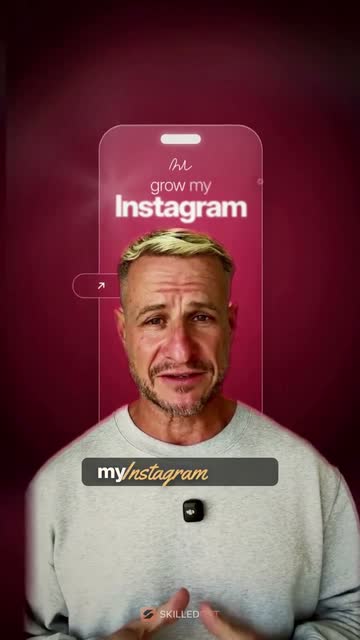 WinePuts you in a wine-red studio with a glass phone card behind your head and your words popping in as you say them./wineSee it
Frequently asked questions
Short answers to what people ask before they try it.
How many workflows does SkilledCut have?
Six: Reel, Captions, Shorts, Voice-over, Clean cut and Rough cut. Each is included in the one payment.
Do workflows work without a template?
Yes. A workflow is useful on its own, for example Clean cut to remove pauses or Captions to add styled words to a clip you already like.
What does the Rough cut workflow export?
A timeline of your cut for Premiere Pro (XML) or DaVinci Resolve and Final Cut Pro (FCPXML), plus a cut video to preview.
Can the Shorts workflow find the best clips?
It suggests moments and you choose. It does not predict how a clip will perform, so you stay in charge of the pick.
Is there a command for each workflow?
Yes. In apps with slash commands they are /reel, /captions, /shorts, /voiceover and /cutpauses, and in any AI agent you can describe the job in a sentence.
Keep reading
Workflows
Workflow: from a talking clip to a finished reel
A seven-step workflow from a raw talking clip to a posted reel: script, film, run the template, review stills, render, check and post.
ReadWorkflows
Workflow: podcast episode to weekly clips
Turn one video podcast episode into a week of styled clips: choose moments, trim, caption, style and schedule. Where tools can help find moments.
ReadHow-to guides
How to cut silence from a video
Remove silence from talking videos: where to cut, how much gap to leave, and options from manual cuts to automatic tools. Avoid choppy results.
ReadHow-to guides
How to cut silence from a video
Remove silence from talking videos: where to cut, how much gap to leave, and options from manual cuts to automatic tools. Avoid choppy results.
ReadBlog
SkilledCut's {{count}} templates compared: which one for which video
Wine, Plum, Amber, Cobalt, Big Word, Notebook, Throwback, Float Ad, Lookbook and more: what each template does and which video it suits.
Read
More in the blog or all 16 templates.
Your next Reel is one prompt away.
One payment for every template, effect, voice and workflow, plus all upcoming templates. Pay once, use forever.