

4 min readUpdated
Text behind person video: how the effect is built, layer by layer
Short answer
A text behind person video stacks three layers: the original frame as the background, a word placed on top of it, and a cut-out of the person laid over the word. Each frame needs a fresh cut-out mask so the person stays in front as they move, and the word is timed to land when it is spoken.
On this page
What the effect looks like and why it works
In a text behind person video, a large word appears in the room behind the speaker. Their head and shoulders sit in front of the letters, as if the word were painted on the wall or hanging in the air behind them. On Instagram Reels and TikTok it has become a signature look for founder intros, coaching clips and product reels.
It works because it adds depth to a flat talking head. The eye reads three planes, the wall, the word and the person, and the word gets attention without covering the face. It also puts the one idea you want remembered in the biggest possible type while the speaker keeps talking.
The three layers, explained
The top layer is the hard part. Every frame needs a mask, a black and white image that says which pixels belong to the person. Older workflows used a green screen for this. Today, segmentation models trained on people can find the outline of a person in an ordinary room, so you can film at your desk.
| Layer | What it is | What can go wrong |
|---|---|---|
| Bottom: background plate | The original video frame | A busy background makes the word hard to read |
| Middle: the word | Type, sized and placed in the space around the head | Too small, wrong timing, or placed where the head never covers it |
| Top: the cut-out | The person separated from the background, frame by frame | Flickering edges, lost hair, missing hands |
How to make it by hand in a regular editor
This is a fair job for one word in one clip. It becomes slow when you want a word on every beat of a 40-second reel, because each one needs timing, placement and a check of the mask.
- Duplicate your clip onto a second track above the first.
- On the top copy, apply a person cut-out or background removal so only you remain.
- Between the two copies, add a text layer with your keyword in large, bold type.
- Place the word so part of it sits behind your head and shoulders. If none of it is covered, the illusion is lost.
- Set the text to appear on the exact frame where you say the word, with a short scale or slide-in.
- Hold it for one to three seconds, then animate it out before the next word.
- Scrub frame by frame at the edges of your hair and hands to catch mask errors.
Choosing the word, the type and the timing
- Pick the word the sentence turns on, usually a noun or a strong verb: FOCUS, PRICE, QUIT, SYSTEM.
- One word at a time. Two short words can work; a phrase cannot.
- Heavy, condensed or serif display type reads best when partly hidden.
- Match colour to mood: a cool blue feels sharp and modern, a warm serif feels premium.
- Land the word on the first syllable of the spoken word, not after it.
- Leave a gap of a few seconds between words so each one registers.
Filming habits that make the cut-out clean
- Sit a metre or more in front of the wall so there is space for the word behind you.
- Use even light on your face and a background a little darker than you.
- Avoid a background the same colour as your hair or top.
- Keep your head in the upper third of a 9:16 frame so there is wall above and beside it.
- Fast hand movements and loose hair are the hardest edges; slow down a little.
Automating the effect with SkilledCut
SkilledCut is an AI video editor that runs on your own computer and builds this effect for you. Your AI agent reads the transcript and picks the strongest word on each beat; SkilledCut cuts you out of every frame, places the word behind you and renders. Stills go back to the agent, which moves any word that lands over your face.
Several templates use it in different styles. Big Word lands one keyword behind your head on every beat in your own room, with tag chips flying in. Cobalt uses a bold condensed blue word and adds photo cards taken from your clip. Layers mixes a silver word behind the head with plates, charts and cards. If you want the word as a single moment inside another edit, the Backdrop word and Spotlight effects add one.
Prompts you can paste: “/big-word on my latest video, pick one keyword per beat.” Or for one moment: “/effects backdrop-word, put the word FOCUS behind my head at 3 seconds.” The prompt library has versions for every template, and our comparison of Big Word, Cobalt and Amber helps you choose a look.
Templates for this
Ask your AI agent for any of them by name. Every template is included with SkilledCut, plus all upcoming ones.
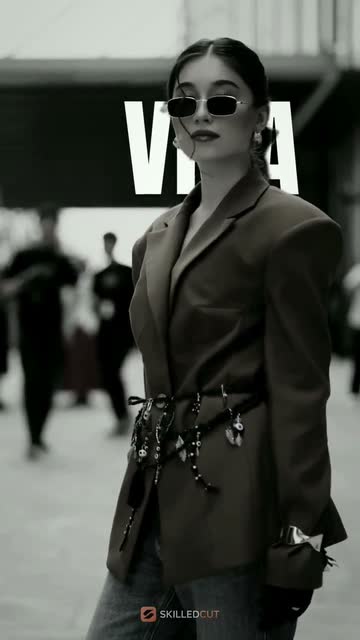 Big WordOne big keyword lands behind your head on every beat, in your own room, with tag chips flying in./big-wordSee it
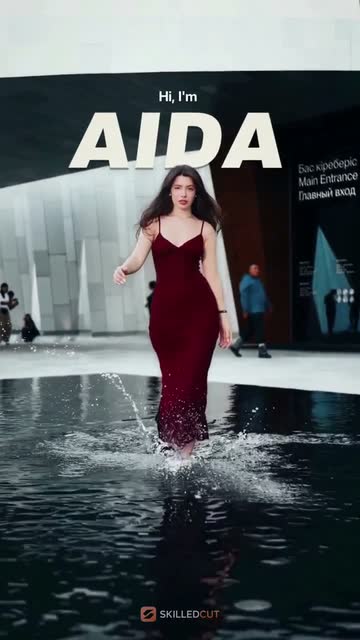 CobaltA bold blue keyword behind your head on every beat, with photo cards from your clip and a bright, clean grade./cobaltSee it
 LayersA full motion-graphics edit from one plain clip: words behind your head, plates, charts and cards./layersSee it
Frequently asked questions
Short answers to what people ask before they try it.
Do I need a green screen for text behind a person?
No. Modern person segmentation finds your outline in an ordinary room. A green screen still gives the cleanest edges, but it is not required.
Why does my cut-out flicker around the hair?
The mask changes slightly between frames. Better light, a background that contrasts with your hair and less fast movement all reduce flicker.
Can the text go behind more than one person?
Yes, if the cut-out finds every person in the frame. It is easier with one speaker, which is why most templates are built around a single talking head.
How many words should appear behind me?
One per beat, often every few seconds. A word in every sentence becomes noise; a word on each key idea keeps attention.
Does this work on widescreen video?
The technique works in any shape, but the templates on this site render vertical 9:16 for Reels, TikTok and Shorts.
Keep reading
Use cases
How to put big text behind your head in a video
Put a giant word behind your head on key words with Layers or Bold. What the effect is, how to film for it and how to get it with your AI agent.
ReadGlossary
What is cutout (video)?
A cutout separates a person from the background so graphics can sit behind them. Definition, how it works at a high level and how to film for clean edges.
ReadHow-to guides
How to remove a video background without a green screen
How AI subject matting works, what footage cuts out cleanly, and how to get a usable result from a plain room and good lighting.
ReadBlog
Big Word, Cobalt or Amber: which keyword reel template should you use?
Three templates put one big keyword on every beat of a reel. Big Word, Cobalt and Amber compared by type, grade and the footage each suits.
ReadBlog
Vertical video editing in 9:16: canvas, safe zones, type and export
Edit vertical 9:16 video properly: canvas and resolution, where text can safely go, reframing widescreen footage, type sizes, motion and export settings.
Read
More in the blog or all 16 templates.
Your next Reel is one prompt away.
One payment for every template, effect, voice and workflow, plus all upcoming templates. Pay once, use forever.