

4 min readUpdated
The Instagram Reels safe zone: where text and faces belong
Short answer
The Instagram Reels safe zone is the middle of the 9:16 frame that the app's buttons and text do not cover. The bottom strip holds your name and post caption, the right edge holds the like, comment and share buttons, and the top holds the Reels header. Keep faces, captions and key graphics in the central area.
On this page
What covers your Reel when it plays?
A Reel is a 1080 by 1920 frame, but viewers never see all of it clean. Instagram draws its own interface on top, and that interface changes shape between app versions, phone sizes and whether the viewer taps to expand the post caption. Treat the edges as shared space you do not control.
Three areas cause most problems. Anything you place there may be hidden, cut off or simply hard to read against white icons.
| Area | What sits there | What to keep out |
|---|---|---|
| Bottom strip, roughly the lowest fifth | Profile name, follow button, post caption, audio label | Captions, prices, calls to action, your chin |
| Right edge column | Like, comment, share, save and audio buttons | Long headlines, lists, logos |
| Top band | Reels header and camera icon | Hook titles that run to the very top |
| Centre | Nothing from the app | This is where your face and key text go |
These are working rules of thumb, not official pixel values. Instagram changes its layout, so always preview on a real phone.
Where should each element go?
Think of the frame in three bands. The upper third is for the hook title and big words. The middle third is your face, the thing people came to see. The lower third, just above the app's caption strip, is where word-by-word captions sit best, high enough to clear the profile name and low enough to stay off your mouth.
- Hook title: upper third, centred, with a margin from the top band.
- Face: centre, with your eyes a little above the middle line.
- Captions: lower third, but above the bottom strip, two lines at most.
- Graphics such as lists or counters: beside or behind your head, not on the right edge.
- Calls to action: say them aloud and show them as text in the centre, not at the very bottom.
How do templates keep graphics out of the danger areas?
Templates that put words behind your head use the safe centre by design. In Bold, giant blue words slam in behind the speaker while captions pop word by word in front, so the main text lives in the middle of the frame rather than the edges. Glass places frosted info cards behind your head on key words, again in the centre where the app draws nothing.
The captions workflow places captions away from your face and inside the safe area, in pop, karaoke, boxed or minimal style. After the render, SkilledCut's automatic checks confirm the face is visible and send still frames back to your AI agent, which fixes overlaps it can see, for up to two review rounds.
How do you check the safe zone before posting?
You can also ask your AI agent to look for you. A prompt such as "Check the stills of this Reel and tell me if any caption or graphic sits in the bottom fifth or on the right edge" works well, because the agent already receives stills from every render. Ready-made versions of this and other fix-it follow-ups are on the prompts page.
- Export at 1080 by 1920 so the frame matches what Instagram expects.
- Send the file to your phone and open it in the Instagram Reel editor without posting.
- Pause on every frame with text and look at the bottom and right edge.
- Tap to expand a long post caption and see what it hides.
- If anything is covered, move it in the edit, not by shrinking it until it is unreadable.
What about TikTok and YouTube Shorts?
All three apps cover the bottom and right edge, but not by exactly the same amount. TikTok's caption area tends to sit a little higher, and YouTube Shorts adds its own title and subscribe button near the bottom. If you post one file everywhere, design for the strictest of them: keep everything important in the centre and a generous margin at the bottom.
The safe zone matters for the cover too. The grid crops a Reel cover to a smaller shape, so a title near the top or bottom of the cover frame may be cut on your profile. Our page on reel cover images covers that crop.
For one margin that works across Reels, Shorts and TikTok, see caption safe zones for vertical video; for the general term, including title safe on widescreen, see safe zone.
Common safe zone mistakes
Each of these is easy to avoid at the edit stage and hard to fix after posting, since Instagram does not let you replace the video in a published Reel.
- Burned-in captions at the very bottom, under the profile name.
- A list or checklist running down the right edge, behind the like button.
- A website address in the last two seconds, hidden by the post caption.
- Text over the mouth, which makes viewers work harder to follow.
- A logo in a corner, which the app usually covers anyway.
Templates for this
Ask your AI agent for any of them by name. Every template is included with SkilledCut, plus all upcoming ones.
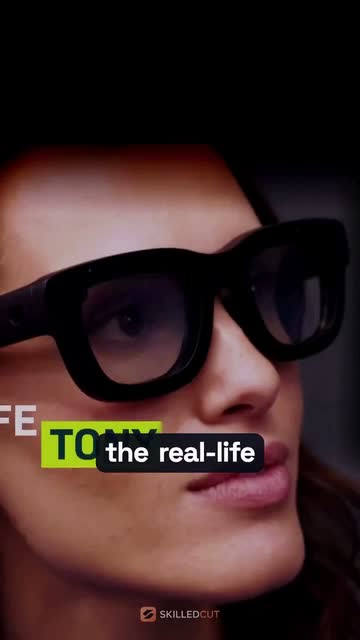 BoldA 10-second reel where giant words slam in behind you and captions pop word by word./boldSee it
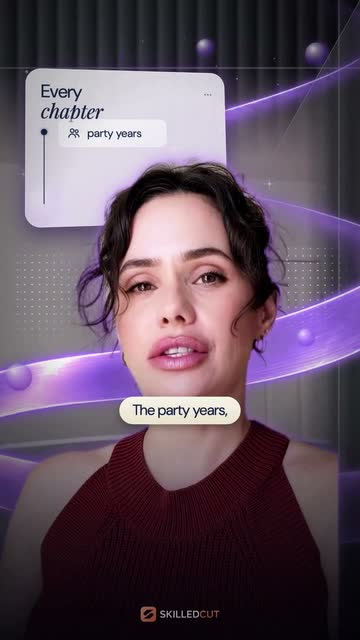 GlassA premium 10-second reel: a glass ribbon behind you, frosted cards and glass scenes cut in./glassSee it
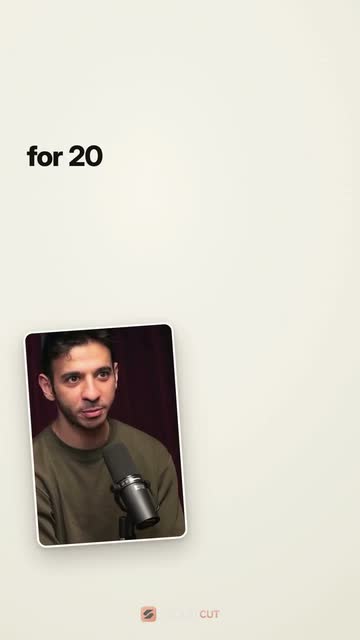 NotebookAn editorial page: you play in a photo card that glides around the page while your words type on in big black type./notebookSee it
Frequently asked questions
Short answers to what people ask before they try it.
What size is the Instagram Reels safe zone in pixels?
Instagram does not publish an official figure and its layout changes. As a working rule, keep important content out of the bottom fifth, the right edge and the top band of a 1080 by 1920 frame, then check on a phone.
Do captions belong in the safe zone?
Yes. Put burned-in captions in the lower third but above the strip where Instagram shows your name and post caption, and keep them to two short lines.
Does the safe zone change for ads?
Ad placements can add extra buttons, such as a call to action bar, so leave a larger bottom margin for paid Reels and preview the ad before it runs.
Can SkilledCut place text for me?
Yes. Templates and the captions workflow place text away from your face and inside the safe area, and your AI agent reviews the stills after each render to fix anything that overlaps.
Keep reading
Platform guides
Instagram Reels editing guide
How to edit for Instagram Reels: vertical 9:16, safe zones, captions, hooks and pacing, and which SkilledCut template fits. Check Instagram for limits.
ReadBlog
How to edit Instagram Reels on a laptop, start to finish
Move phone footage to your laptop, edit Reels with an AI agent on your own computer, check the 9:16 export and get the file back to your phone to post.
ReadShort-form growth
How to use on-screen text in short videos
On-screen text should add, not repeat. Learn where to place it, how large to make it, how long to hold it and when captions and titles do different jobs.
ReadShort-form growth
How to choose a Reel cover image that fits your grid
Pick or design a cover that is readable at small size, consistent across your profile and cropped safely for the grid.
Read
More in the blog or all 16 templates.
Your next Reel is one prompt away.
One payment for every template, effect, voice and workflow, plus all upcoming templates. Pay once, use forever.