

4 min readUpdated
How to edit YouTube Shorts: a step-by-step workflow from raw clip to upload
Short answer
To edit YouTube Shorts, pick one idea, open on its strongest sentence, cut pauses and retakes, reframe to 9:16 with your face centred, add word-by-word captions in the middle of the frame, give the viewer a reason to subscribe or watch the long video, then export at 1080 by 1920 and check it on a phone.
On this page
Where do good Shorts come from?
Most strong YouTube Shorts come from one of two places: a clip filmed vertically for the purpose, or a moment lifted out of a longer video. Both need the same edit, but the second needs one extra decision first. Which forty seconds of your twenty-minute video can stand alone, without the viewer knowing what came before?
Look for a moment with a clear question and a clear answer, a surprising claim, a story with an ending, or a list of three things. Skip moments that depend on a slide, an earlier joke or a sentence like as I said before. If you pull clips from long videos often, the Shorts workflow finds candidate moments for you and follows your face into a vertical frame.
Step-by-step: editing one Short
- Pick the idea. Write it in one sentence. If you cannot, the clip is two Shorts or none.
- Choose the opening line. Find the sentence that states the problem or the payoff and make it the first thing heard.
- Cut to length. Remove pauses, filler words and repeated attempts. Then cut whole sentences that repeat the point.
- Reframe to 9:16. Keep your eyes in the upper third of the frame and your face clear of the bottom area where YouTube shows the title and channel name.
- Add captions. Word-by-word or two to four words at a time, sitting in the middle band, with the key word highlighted.
- Add one visual change every few seconds. A punch-in, a keyword, a stat card or a checklist.
- Close with a reason to stay. Point to the full video, ask a question or end on a line that loops into the start.
- Export and check. 1080 by 1920, normal loudness, and watch it once on a phone before uploading.
Shorts-specific choices that differ from Reels and TikTok
The edit is mostly the same across vertical apps, but a few choices are worth making with YouTube in mind. Shorts sit next to your long videos on the same channel, so a Short can do a job TikTok cannot: send viewers to a longer video. A Short that teases a full tutorial, or answers one question from it, gives the right viewer a path deeper into your channel.
YouTube also lets you link a Short to a related video, which is a better call to action than a spoken subscribe request. Say the one-line reason to watch the long version and let the link do the rest.
| Decision | Good default for Shorts | Why |
|---|---|---|
| Opening | The payoff sentence first | The swipe comes fast; context can come second |
| Length | Shorter than you think | A tight clip is replayed; a padded one is skipped |
| Captions | Burned in, middle band | Bottom of the frame holds title and channel name |
| Ending | Point to the long video or loop | Shorts can feed your main channel |
| Music | Low under speech or none | Speech carries a talking head |
YouTube changes Shorts length limits and features from time to time. Check YouTube Help for the current rules before you plan a long Short.
Editing Shorts with your AI agent
If editing every Short by hand is what stops you posting, an AI video editor can take most of the steps above. SkilledCut runs on your Mac, Windows or Linux computer and nothing is uploaded. Your AI agent reads the transcript, chooses the opening line and the strongest words for visuals, SkilledCut renders, and automatic checks plus still frames go back to the agent so it can fix what it sees.
For a teaching channel, Explainer turns a talking clip into a lesson with gold word-by-word captions and points on screen. For a layered edit with words behind your head, plates and charts, use Layers. For a punchy 10-second teaser, Bold works well.
Try a prompt like: “/shorts on my latest long video. Make 3 Shorts under 40 seconds, each opening on its strongest sentence, with pop captions.” Or for one vertical clip: “/explainer on this clip, keep it under a minute and end by pointing to the full tutorial.” The prompt library has more you can copy.
Common Shorts editing mistakes
After a week of posting, read your Shorts analytics. If viewers leave in the first seconds, your opening is the problem. If they leave in the middle, cut harder.
- Opening with a channel intro, a logo sting or a greeting.
- Leaving the original widescreen video with black bars above and below.
- Captions so low they sit under the title and channel name.
- Background music loud enough to compete with your voice.
- Ending on a long outro that viewers never reach.
- Clips that need context from the long video to make sense.
Templates for this
Ask your AI agent for any of them by name. Every template is included with SkilledCut, plus all upcoming ones.
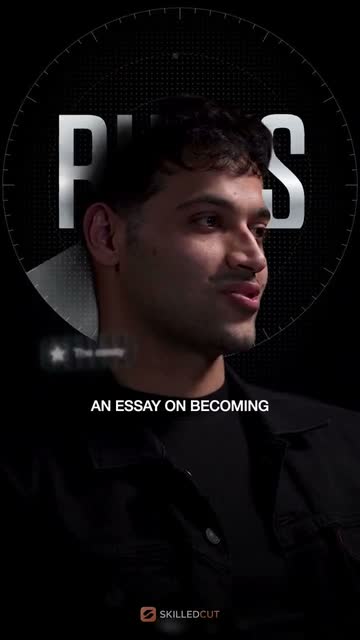 LayersA full motion-graphics edit from one plain clip: words behind your head, plates, charts and cards./layersSee it
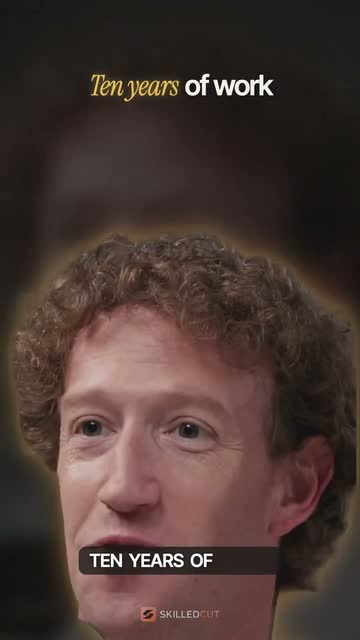 ExplainerTurns a talking clip into a clear lesson with gold word-by-word captions and points on screen./explainerSee it
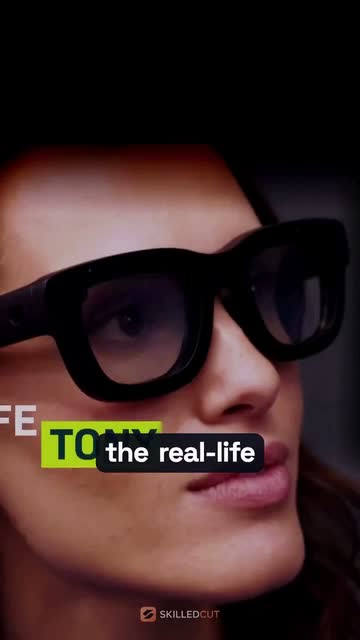 BoldA 10-second reel where giant words slam in behind you and captions pop word by word./boldSee it
Frequently asked questions
Short answers to what people ask before they try it.
What size should a YouTube Short be?
Vertical 9:16, usually 1080 by 1920 pixels. A square or widescreen video can upload, but a full vertical frame uses the whole phone screen.
Can I turn a long YouTube video into Shorts?
Yes. Pick moments that stand alone, reframe them to vertical with your face centred and add captions. SkilledCut's Shorts workflow finds moments and follows your face for you.
Do YouTube Shorts need captions?
They help. Many viewers scroll with sound off, and captions keep them following. Burn them in so they show on every device, and keep them in the middle of the frame.
Should a Short have background music?
Only if it stays well under your voice. For a talking head, clear speech matters more. If you add music, duck it under speech.
How many Shorts can I get from one long video?
It depends on how many self-contained moments it has. A 20-minute tutorial often holds three to six. Quality beats count: one strong Short is better than five weak ones.
Keep reading
Platform guides
YouTube Shorts editing guide
How to edit for YouTube Shorts: vertical 9:16, hooks, captions, pacing and exporting, plus which SkilledCut template fits. Check YouTube for limits.
ReadShort-form growth
How to grow on YouTube Shorts from zero
Start with one topic, publish consistently, tune the first seconds, and use Shorts to lead viewers to longer videos.
ReadHow-to guides
How to reframe horizontal video to vertical
Convert 16:9 to 9:16: crop, track the subject, blur-fill or re-film. How each works, quality trade-offs and when to re-shoot instead.
ReadSocial media
How to read YouTube Shorts analytics
Views, viewed versus swiped away, average view duration and subscribers gained: what each number means and how to act on it.
ReadBlog
TikTok talking head editing: 9 tips that keep people watching
Nine practical TikTok talking head editing tips: first frame, cut rhythm, caption placement around the app buttons, visual changes and endings that loop.
Read
More in the blog or all 16 templates.
Your next Reel is one prompt away.
One payment for every template, effect, voice and workflow, plus all upcoming templates. Pay once, use forever.