

Start here3 min readUpdated
Video effects for talking-head reels: the 50+ effects, by what they do
Short answer
SkilledCut has more than 50 effects in five groups: text, camera, social, lists and reels. You add one by describing it, for example "put the word FOCUS behind my head at 3 seconds". Pick two or three per reel, one for the hook, one for the key point and one to close, rather than layering everything.
On this page
What are the five groups of effects?
The effects page lists all of them with a real frame. They sort into five groups by the job they do for a talking head.
| Group | Count | What it is for |
|---|---|---|
| Text | 14 | Giant words, titles and headlines behind or beside you |
| Camera | 12 | Zooms, grades, transitions and pattern breaks |
| Social | 6 | Comments, follows and messages people recognise |
| Lists and stats | 10 | Steps, rankings, graphs and counters |
| Reels and b-roll | 9 | Your clips as cards, grids and split screens |
Which text effects do the most work?
Text is the group most reels need. The backdrop word drops one giant word behind you and is the simplest way to mark a key idea. The spotlight darkens the room and lights a word. The huge strike fills the wall with one serif word and crosses it out, which is a clean way to dismiss a myth. The headline box punches in with a two-line title.
The rest of the group, from the LED sign to the crayon write, are variations in mood, so choose one that matches your voice rather than your mood that day.
How many effects are too many?
A talking head holds attention through the voice, so each effect should answer a question the viewer has. A simple pattern is one effect for the hook in the first three seconds, one for the point you most want remembered, and one at the end. Anything more starts to compete with your face.
Effects also sit behind or beside the head by design, so none of them cover your face. If a result still looks busy, remove the middle one first.
How do effects relate to the templates?
Templates are complete looks; effects are single moves. A template such as Bold or Big Word already places a word behind you on every beat. Effects are for when you want one move on a clip that has no template, or one extra move on a finished template render. You can ask for either in the same message.
Make it with your AI agent
Type "/bold on my podcast clip" in Claude Code, Codex or Cursor with the clip attached: video effects for reels, handled on your computer. Copy more in the prompt library or see the Bold template.
Templates for this
Ask your AI agent for any of them by name. Every template is included with SkilledCut, plus all upcoming ones.
 BoldA 10-second reel where giant words slam in behind you and captions pop word by word./boldSee it
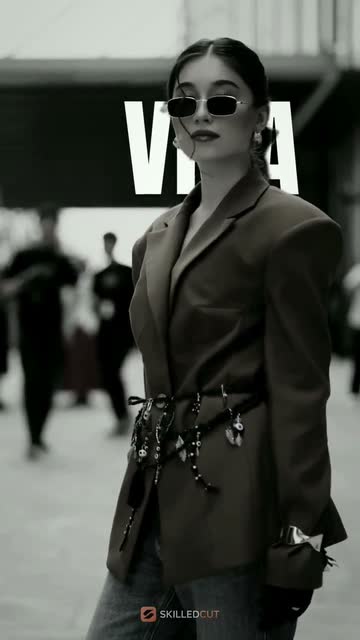 Big WordOne big keyword lands behind your head on every beat, in your own room, with tag chips flying in./big-wordSee it
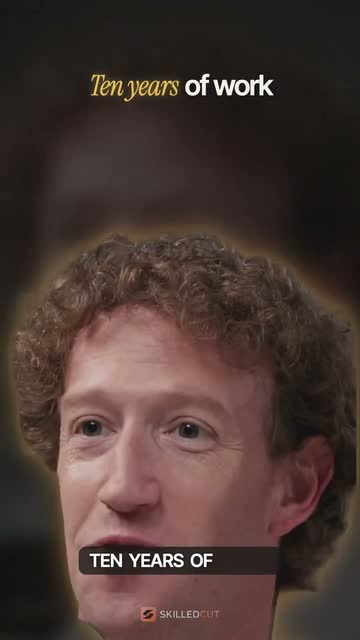 ExplainerTurns a talking clip into a clear lesson with gold word-by-word captions and points on screen./explainerSee it
 LayersA full motion-graphics edit from one plain clip: words behind your head, plates, charts and cards./layersSee it
Frequently asked questions
Short answers to what people ask before they try it.
How many effects does SkilledCut have?
More than 50, in five groups: text, camera, social, lists and reels. Each has its own page with a frame and the sentence that adds it.
How do I add an effect?
Describe it to your AI agent with the word and the moment, for example "put the word FOCUS behind my head at 3 seconds". Your AI agent places it for you.
Do effects cover my face?
No. Effects are designed to sit behind or beside the head, and your AI agent can render preview stills so you can check the placement before the full render.
Can I use effects on a template render?
Yes. Ask for the template first, then add an effect to the result, or ask for both in one message.
Are effects included in the price?
Yes. Every effect is included in the one payment, with every template, voice and workflow.
Keep reading
How-to guides
How to use sound effects in short videos
Sound effects add punch to cuts and text. Where to use them, how loud, and how to avoid cheesy overuse. Licensing basics included.
ReadShort-form growth
How to use on-screen text in short videos
On-screen text should add, not repeat. Learn where to place it, how large to make it, how long to hold it and when captions and titles do different jobs.
ReadUse cases
How to put big text behind your head in a video
Put a giant word behind your head on key words with Layers or Bold. What the effect is, how to film for it and how to get it with your AI agent.
ReadHow-to guides
How to use punch-ins and zooms
Punch-ins add emphasis and hide jump cuts. When to use them, how big, how often and how to keep them smooth rather than jittery.
ReadBlog
SkilledCut's {{count}} templates compared: which one for which video
Wine, Plum, Amber, Cobalt, Big Word, Notebook, Throwback, Float Ad, Lookbook and more: what each template does and which video it suits.
Read
More in the blog or all 16 templates.
Your next Reel is one prompt away.
One payment for every template, effect, voice and workflow, plus all upcoming templates. Pay once, use forever.