

5 min readUpdated
How to edit Instagram Reels on a laptop, start to finish
Short answer
To edit Instagram Reels on a laptop, copy the clip from your phone, open it in an editor that exports 9:16 vertical video, cut the pauses, add captions and a hook, then send the finished file back to your phone and post it from the Instagram app. An AI video editor can do the cutting for you.
On this page
- 1Why edit Reels on a laptop instead of your phone?
- 2How do you get footage from your phone to the laptop?
- 3What does an AI-directed edit on your laptop look like?
- 4No AI agent? The quick mode still works
- 5What should you check before the file goes back to your phone?
- 6How do you post a laptop-edited Reel?
- 7Frequently asked questions
Why edit Reels on a laptop instead of your phone?
Phone apps are fine for a single quick clip. The trouble starts when you post several times a week. A small screen hides soft focus, stray filler words and captions that sit on your chin. Trimming on a touchscreen is slow, and files pile up in the camera roll with names like IMG_4821.
A laptop gives you a big preview, a proper folder for each week's clips and a keyboard for typing instructions. It also lets you hand the repetitive part of the job, the cutting and captioning, to software while you plan the next video. Most creators who batch record end up editing on a computer for exactly this reason.
| Task | Phone app | Laptop |
|---|---|---|
| Spotting soft focus or a messy background | Hard on a small screen | Easy at full size |
| Editing five clips in one sitting | Tiring, one at a time | Queue them in a folder |
| Typing exact caption wording | Fiddly | Quick on a keyboard |
| Posting to Instagram | Direct | Send the file back to the phone first |
How do you get footage from your phone to the laptop?
Use whatever moves the original file without shrinking it. Messaging apps often compress video, which softens your face and adds blocky shadows, so avoid sending clips to yourself over chat.
- iPhone to Mac: AirDrop, or a cable and the Photos or Image Capture app.
- Android to Windows or Linux: a USB cable and the phone's file transfer mode.
- Any phone to any computer: a cloud drive set to upload originals, then download the file.
- Put each clip in one folder per week, for example Reels / Week 48, and rename it with the topic so you can find it later.
Film in 9:16 on the phone if you can. Cropping a wide clip to vertical later works, but you lose the edges of the frame.
What does an AI-directed edit on your laptop look like?
SkilledCut is an AI video editor that runs on your own computer: a Mac with Apple Silicon, Windows 10 or 11, or 64-bit Linux. Nothing is uploaded. Your AI agent, such as Claude, Codex, Cursor or Gemini CLI, directs the edit. SkilledCut drafts a plan, the agent picks your strongest words, the hook and the motion graphics, SkilledCut renders the video, and automatic checks plus still frames go back to the agent so it can fix what it sees.
In practice you drag the clip into the chat and type one line. For a finished studio look, try "/wine on my latest video" and you get the Wine template: a wine-red studio around you and your words popping into a glass phone card behind your head. For a short punchy opener, "/bold on this clip" gives you Bold, with giant words slamming in behind you. More ready-to-copy lines are on the prompts page.
- Install SkilledCut once with the setup prompt in getting started.
- Drag your clip into your AI agent's chat, or name the file.
- Ask for a template or the reel workflow, for example "Make a reel from my latest video".
- Read the short plan the agent shows you and change any word you do not like.
- Open the finished file in your Downloads folder and read its quality report.
No AI agent? The quick mode still works
You do not need an agent to use it. Quick mode is a simple local app plus a command line. Typing skilledcut wine clip.mp4 in a terminal runs the same Wine template on that file, and skilledcut captions clip.mp4 adds word-by-word captions. The difference is that an agent reviews the stills and makes a second pass, while quick mode gives you the template's default choices.
If you only want the dead air removed so you can finish the edit somewhere else, the clean cut workflow cuts pauses and nothing else, and the rough cut workflow hands you a Premiere Pro, DaVinci Resolve or Final Cut timeline instead of a finished video.
What should you check before the file goes back to your phone?
Watch the whole Reel once with sound on and once on mute. On a laptop it is easy to forget how the video will look under Instagram's buttons, so check the bottom and right edge in particular. Our guide to the Instagram Reels safe zone shows what to keep clear.
- The file is 9:16 vertical, ideally 1080 by 1920.
- Your face is visible and never covered by text or a graphic.
- The first three seconds say what the video is about.
- Captions match what you said, including names and numbers.
- Sound is clear and not clipping; the quality report flags loudness problems.
How do you post a laptop-edited Reel?
Instagram is built around the phone app, so the simplest route is to send the finished MP4 back to your phone the same way it came: AirDrop, cable or cloud drive set to original quality. Then create a new Reel, pick the file, choose a cover frame and write the post caption.
Keep a copy of every finished file in your weekly folder. The same vertical video can go to YouTube Shorts and TikTok, and having the clean original saves you from re-editing or downloading a watermarked copy later. When a Reel does well, the original is also what you would re-cut into a longer version.
Templates for this
Ask your AI agent for any of them by name. Every template is included with SkilledCut, plus all upcoming ones.
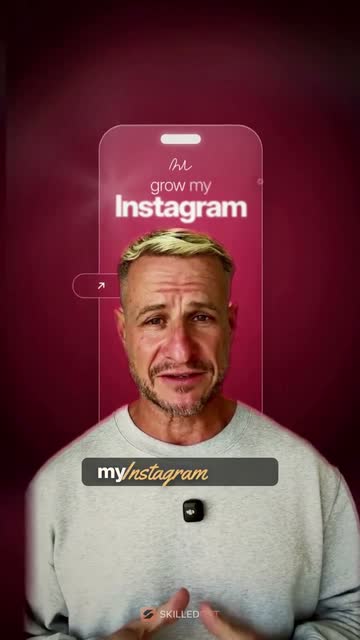 WinePuts you in a wine-red studio with a glass phone card behind your head and your words popping in as you say them./wineSee it
 BoldA 10-second reel where giant words slam in behind you and captions pop word by word./boldSee it
 Big WordOne big keyword lands behind your head on every beat, in your own room, with tag chips flying in./big-wordSee it
Frequently asked questions
Short answers to what people ask before they try it.
Can I edit Reels on a Windows laptop?
Yes. SkilledCut's video templates run on Windows 10 and 11, on Apple Silicon Macs and on 64-bit Linux. The two photo templates, Float Ad and Lookbook, are Mac only for now.
Does my video get uploaded anywhere while it is edited?
No. The edit runs on your own computer and the finished video is saved to your Downloads folder. Your AI agent reads the plan and still frames, but your footage is never uploaded by SkilledCut.
Can I use claude.ai or ChatGPT in the browser for this?
No. Browser chat apps cannot install software or edit files on your computer. Use a desktop agent such as Claude Desktop, Claude Code, Codex, Cursor or Gemini CLI, or the quick mode with no agent.
What laptop do I need?
A Mac with Apple Silicon, or a Windows 10 or 11 or 64-bit Linux machine. Longer clips and heavier templates take longer to render on slower machines, but they still finish.
How much does it cost?
₹999 once, with a 7-day refund and new templates every month included. See the pricing page for what the plan covers.
Keep reading
Platform guides
Instagram Reels editing guide
How to edit for Instagram Reels: vertical 9:16, safe zones, captions, hooks and pacing, and which SkilledCut template fits. Check Instagram for limits.
ReadBlog
The Instagram Reels safe zone: where text and faces belong
Where Instagram's buttons and caption cover your Reel, how to keep text, faces and graphics clear of them, and how to check a 9:16 video before posting.
ReadBlog
Best video editing apps for Mac in 2026
A practical guide to Mac video editors by job: free starters, professional timelines, social-first tools and automation for talking-head reels.
ReadShort-form growth
How to batch record short videos in one session
Film a week of short videos in one sitting: prepare scripts, set up once, change shirt and background, record in order and label files.
Read
More in the blog or all 16 templates.
Your next Reel is one prompt away.
One payment for every template, effect, voice and workflow, plus all upcoming templates. Pay once, use forever.