

4 min readUpdated
Jump cuts in short form video: how to make them feel deliberate, not sloppy
Short answer
Jump cuts in short form video remove pauses and retakes from one continuous shot, so the speaker seems to skip forward. They feel deliberate when every cut lands between words, alternate cuts add a small zoom, the audio level stays even across the cut and the pace leaves a short breath between sentences instead of none.
On this page
Why jump cuts became normal
In classic film editing, a jump cut was a mistake: two shots of the same subject from almost the same angle, so the person seems to teleport. Short form video turned it into a house style. When one person talks to a fixed phone camera, the only way to remove a pause or a fluffed sentence is to cut it out, and the jump is the result.
Viewers of Instagram Reels, TikTok and YouTube Shorts are used to it. A tight jump-cut edit reads as energetic and respectful of their time. The question is not whether to use jump cuts but how to make them look chosen rather than accidental.
Where exactly to cut
- Cut in the gap after a word ends and before the next begins. Look at the audio waveform and cut in the flat part.
- Keep a few frames of breath at the end of a sentence. Zero gap makes speech sound machine-made.
- When you cut a retake, keep the better take, not always the last one.
- Cut on a blink or head movement when you can. Motion hides the jump.
- Never cut in the middle of a word to save time. A clipped consonant is the most noticeable flaw in any edit.
The alternating zoom trick
The most common way to smooth a jump cut is to change the framing slightly on alternate cuts. Shot A plays at normal framing, shot B is scaled up by around ten to twenty percent, shot C returns to normal, and so on. The jump now looks like a camera change, the way a two-camera interview cuts between a wide and a close shot.
Use the punch-in on purpose: zoom in for the important line, the punchline or the number, and pull back out for setup sentences. That turns a technical fix into emphasis. Check that a scaled shot still looks sharp; zooming too far on phone footage shows softness.
| Cut type | What it does | Use it for |
|---|---|---|
| Straight jump cut | Removes a gap, framing unchanged | Small pauses inside a thought |
| Jump with punch-in | Removes a gap and tightens the frame | Key lines, emphasis, the payoff |
| Jump with cutaway | Covers the cut with b-roll or a graphic | Larger jumps, visible head shifts |
| Jump with backdrop change | Changes the scene behind a cut-out of you | Stylised edits, new section or idea |
Keeping the sound smooth
A jump cut is forgiven visually far more easily than audibly. Background noise that changes at the cut, a click at the edit point or a level jump between takes are what make an edit feel amateur. Add a tiny audio crossfade of a few frames at each cut, keep room tone consistent, and normalise loudness across the whole clip so a retake recorded closer to the mic does not jump out.
If you add music, it hides small audio seams, but keep it well under the voice. A talking head is carried by speech.
Jump cuts that look like mistakes
- Cuts so tight there is no breath anywhere, making the speaker sound out of air.
- A shift in head position so large it looks like a glitch; cover it with a cutaway.
- Light changing between takes recorded at different times of day.
- A clipped first or last syllable.
- Jumping between two takes with different energy levels, so the voice changes mood mid-sentence.
- Every single cut zoomed, which becomes as monotonous as none.
Jump cuts done for you
Making dozens of clean cuts by hand in a 60-second clip takes a while, and the zoom pattern takes longer. SkilledCut is an AI video editor on your own computer that removes pauses, filler sounds and repeated takes, then adds camera moves and visuals around the cuts. Your AI agent decides where emphasis belongs, and automatic checks catch black or frozen frames and loudness problems before you see the file.
Layers cuts pauses, filler words and retakes on its own and covers cuts with words behind your head and plates. Bold keeps the camera creeping and swaying the whole time, so jump cuts disappear into constant motion. Throwback changes the retro poster backdrop behind a cut-out of you on every line, which turns each cut into a scene change. For cuts only, the Clean cut workflow removes pauses and dead air and nothing else.
Prompts to paste: “/cutpauses on my latest video, keep a short breath between sentences.” Or: “/layers on my latest video and punch in on the price line.” With no AI agent, run `skilledcut cutpauses clip.mp4`. More on the prompt library.
Templates for this
Ask your AI agent for any of them by name. Every template is included with SkilledCut, plus all upcoming ones.
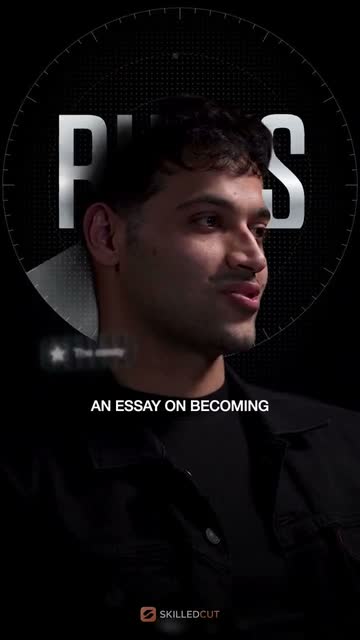 LayersA full motion-graphics edit from one plain clip: words behind your head, plates, charts and cards./layersSee it
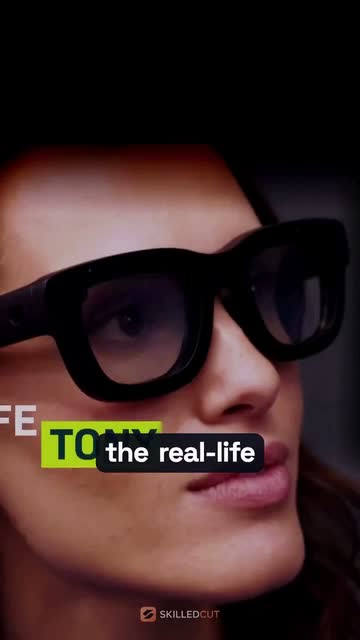 BoldA 10-second reel where giant words slam in behind you and captions pop word by word./boldSee it
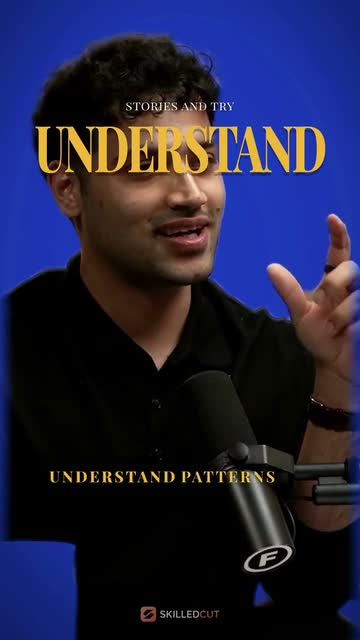 ThrowbackYou cut out over bold retro posters that change on every line, with tall vintage headlines from your own words./throwbackSee it
Frequently asked questions
Short answers to what people ask before they try it.
Are jump cuts bad?
Not in short form video. They are an accepted style on Reels, TikTok and Shorts. They only look bad when cuts land mid-word or the audio jumps.
How much should I zoom on a jump cut?
Around ten to twenty percent is a common range. Enough to read as a new framing, not so much that phone footage looks soft.
How do I hide a jump cut?
Cover it with b-roll or a graphic, add a punch-in, cut on a blink or head movement, or change the background behind a cut-out of yourself.
What is the difference between a jump cut and a punch-in?
A jump cut removes time from one shot. A punch-in changes the framing. They are often combined so the cut looks like a camera change.
Can AI make jump cuts automatically?
Yes. SkilledCut removes pauses, filler sounds and retakes on your computer and can add camera moves around the cuts.
Keep reading
Glossary
What is jump cut?
A jump cut skips forward within the same shot so the subject appears to jump. Definition, why creators use it, and how to make jump cuts feel intentional.
ReadGlossary
What is a punch-in in video editing?
A punch-in is a sudden zoom into a shot to stress a word or hide a jump cut. What it means, how far to zoom before it softens, and when to use one.
ReadHow-to guides
How to pace a short video
Pacing is how often something changes. Set a rhythm with cuts, text and sound, vary it on purpose and leave room for the key line to land.
ReadBlog
TikTok talking head editing: 9 tips that keep people watching
Nine practical TikTok talking head editing tips: first frame, cut rhythm, caption placement around the app buttons, visual changes and endings that loop.
ReadBlog
B-roll ideas for talking head videos: 25 shots you can film today
25 b-roll ideas for talking head videos, grouped by what you are saying, plus graphic alternatives when you have no extra footage and how to place them.
Read
More in the blog or all 16 templates.
Your next Reel is one prompt away.
One payment for every template, effect, voice and workflow, plus all upcoming templates. Pay once, use forever.