

5 min readUpdated
LinkedIn video editing for founders: how to look credible without looking like an ad
Short answer
LinkedIn video editing for founders should feel calm and confident: open on a specific claim from your work, cut pauses but keep a natural pace, caption every word for viewers scrolling on mute at their desk, use one restrained graphic per idea such as a stat or checklist, and end with a question rather than a hard sell.
On this page
- 1What makes LinkedIn different from TikTok or Reels?
- 2Choosing the frame: vertical, square or widescreen
- 3Editing choices that read as credible
- 4A calm structure for a 45-second LinkedIn video
- 5Doing it with your AI agent instead of a timeline
- 6What to check before you post on LinkedIn
- 7Frequently asked questions
What makes LinkedIn different from TikTok or Reels?
The people watching your LinkedIn video are often at work. They may be in an open office, on a train with no headphones, or skimming between meetings. They are judging whether you know your field, not whether you are entertaining. An edit that would feel energetic on TikTok, with flashing colours, whoosh effects every second and meme zooms, can make a founder look like they are selling a course.
That does not mean boring. It means the energy comes from the substance: a sharp claim, a real number, a clear lesson from your own company. The editing should make that substance easy to follow and then get out of the way.
Choosing the frame: vertical, square or widescreen
LinkedIn shows vertical, square and widescreen video in the feed. Vertical 9:16 fills more of a phone screen, which is where most scrolling happens, and it lets you reuse the same clip for Instagram Reels and YouTube Shorts. Widescreen suits a recorded talk, a panel or a screen demo where the detail matters. Square sits in between.
If you post one format, make it vertical or 4:5 and keep your face and captions in the centre so the crop survives on desktop too. Check LinkedIn's help pages for current size and length limits, because they change.
| Format | Good for | Watch out for |
|---|---|---|
| 9:16 vertical | Talking-head posts, reuse on Reels and Shorts | Looks narrow on desktop feeds |
| 4:5 or 1:1 | A balance of phone and desktop | Less room for text above the head |
| 16:9 widescreen | Talks, panels, product demos | Small on phones; captions must be larger |
Editing choices that read as credible
- Open on a specific line from your work. “We lost our biggest customer in March, and it was the best thing that happened to us” beats “Hi everyone, quick thought today.”
- Cut pauses and retakes, but leave a breath between ideas. A founder who sounds rushed sounds nervous.
- Caption every word. Use a clean style such as minimal or boxed, in your brand colour if you have one.
- Use one graphic per idea, not per sentence. A stat card for the number, a checklist for the three steps, a keyword behind your head for the one idea you want remembered.
- Keep sound effects rare or absent. A soft click on a checklist tick is fine; a whoosh on every cut is not.
- Grade gently. Even skin tones and a clean background matter more than a dramatic look.
- Show your name and role once, early, if people outside your network will see the post.
A calm structure for a 45-second LinkedIn video
This structure is easy to edit because each part has a job. If a sentence does not serve its part, cut it. Founders who record long and edit short tend to sound more confident than those who try to say it perfectly in one take.
- 0 to 3 seconds: the claim or result, said plainly, with a short title on screen.
- 3 to 15 seconds: the situation. What you were facing, in your words, with one visual that sets the scene.
- 15 to 35 seconds: what you did or learned, as two or three points. A checklist or numbered cards fit here.
- 35 to 45 seconds: the lesson for the viewer and a real question that invites comments.
Doing it with your AI agent instead of a timeline
Most founders do not have hours a week for editing, and handing every clip to an agency gets expensive. SkilledCut is an AI video editor that runs on your own computer, so investor updates and unreleased product details never leave your machine. Your AI agent, whether that is Claude, Codex, Cursor or Copilot in VS Code, reads the transcript, picks the opening claim and the words worth a graphic, and checks the render before you see it.
For a founder intro or brand story filmed in your own office, Amber lands your key words big over your head in warm serif type with gold tag chips, which reads premium without being loud. For a lesson-style post, Explainer adds gold word-by-word captions and points on screen. For a richer edit with charts behind you and plates on your numbers, use Layers.
A prompt to paste: “/amber on my latest video. Open on the line about losing our biggest customer, keep it calm, no more than one graphic per idea, and add minimal captions.” For captions only: “/captions minimal on this clip.” You can copy more from the prompt library, and the Captions workflow covers the four caption styles.
What to check before you post on LinkedIn
- Watch it muted. Can someone in a quiet office follow every point?
- Is any number or company name misspelt in the captions?
- Does anything on screen reveal a customer, a dashboard or a figure you did not mean to share?
- Is the audio clear on laptop speakers, not only headphones?
- Does the post text above the video add context, not repeat the video word for word?
Templates for this
Ask your AI agent for any of them by name. Every template is included with SkilledCut, plus all upcoming ones.
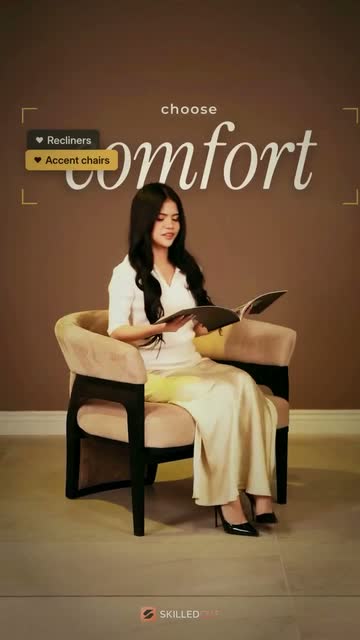 AmberYour key words land big over your head in warm serif type, with gold tag chips flying in, in your own room./amberSee it
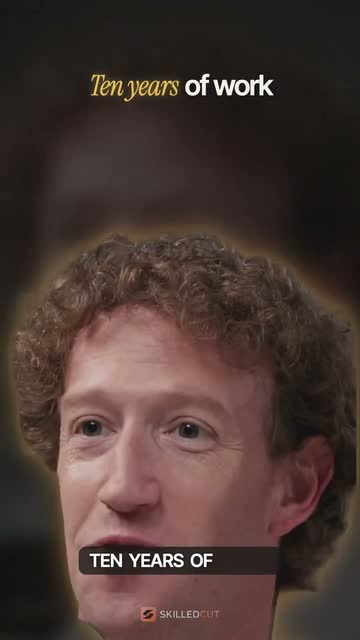 ExplainerTurns a talking clip into a clear lesson with gold word-by-word captions and points on screen./explainerSee it
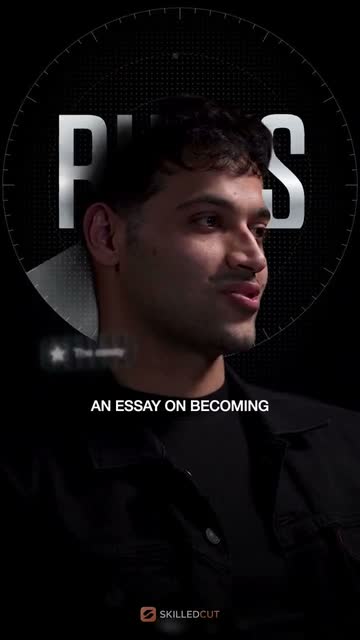 LayersA full motion-graphics edit from one plain clip: words behind your head, plates, charts and cards./layersSee it
Frequently asked questions
Short answers to what people ask before they try it.
Should LinkedIn videos be vertical?
Vertical or 4:5 is a good default for talking-head posts because most people scroll on phones. Use widescreen for talks, panels and demos where detail matters.
Do LinkedIn videos need captions?
Yes. Many people watch at work with the sound off. Burned-in captions keep them following and make the video accessible.
How long should a founder's LinkedIn video be?
Long enough for one clear idea. Many strong posts land between 30 seconds and two minutes. Cut anything that repeats the point.
Will flashy edits hurt my credibility on LinkedIn?
They can. Heavy effects and constant sound effects can make a founder look like an advertiser. Use restrained graphics that support a number or a list.
Is my footage uploaded when SkilledCut edits it?
No. SkilledCut renders on your own computer, so the clip, transcript and finished video stay on your machine.
Keep reading
Platform guides
LinkedIn video editing guide
How to edit for LinkedIn: vertical vs widescreen, captions, hooks and pacing, with which SkilledCut templates fit. Check LinkedIn for limits.
ReadSocial media
LinkedIn video strategy for founders and experts
How founders and experts can use video on LinkedIn: topics, format, length, posting rhythm and conversion. Honest guidance and what to test.
ReadUse cases
Video editing for startup founders
Founders can launch features, hire and tell their story with one talking clip. See which template suits launch videos, updates and explainers.
ReadFor creators
How to build a personal brand with video
Build a recognisable personal brand: a clear promise, consistent look, repeat formats, honest voice and patience. A practical plan with a checklist.
ReadBlog
How to edit YouTube Shorts: a step-by-step workflow from raw clip to upload
A start-to-finish workflow for editing YouTube Shorts from raw footage: picking the moment, cutting to length, captions, a strong ending and export.
Read
More in the blog or all 16 templates.
Your next Reel is one prompt away.
One payment for every template, effect, voice and workflow, plus all upcoming templates. Pay once, use forever.